

Table of Contents
Are you tired of the hassles associated with developing and deploying websites? Ensuring a smooth workflow from development to deployment is crucial for any web project. Efficient staging environments play a vital role in this process.
Imagine having a platform that allows you to test and refine your website changes without affecting your live site. This is where Kinsta’s staging environments come into play, offering a robust solution for developers to work efficiently.
By leveraging Kinsta’s developer tools hosting, you can significantly enhance your development workflow, making it more streamlined and less prone to errors. This not only improves your site’s performance but also enhances collaboration across teams.
Key Takeaways
- Understanding the role of staging environments in web development.
- How Kinsta’s staging environments can transform your workflow.
- The importance of testing changes without impacting your live site.
- Enhancing collaboration and reducing errors with developer tools.
- Improving site performance through efficient development practices.
Understanding Kinsta Staging Environments
Understanding the nuances of Kinsta’s staging environments is crucial for effective site management. Kinsta’s staging environments provide a safe and flexible space for testing and development, closely mirroring the production environment.
What Are Staging Environments?
A staging environment is a replica of your live site where you can test changes, updates, and new features without affecting the live version. Kinsta’s staging environments are designed to be highly similar to your production setup, allowing for accurate testing.
How Staging Fits Into the Development Lifecycle
In the development lifecycle, the staging environment plays a critical role. It acts as a bridge between your local development setup and the live site, enabling thorough testing before deployment. This step is essential for ensuring that updates or new features do not disrupt the user experience on your live site.
Differences Between Staging and Live Environments
While Kinsta’s staging environments are designed to mirror your live site, there are key differences. For instance, full page caching and OPcache are disabled by default in staging to provide a more accurate testing environment, potentially resulting in higher page loading times. Additionally, site indexing is disabled to prevent search engines from indexing your test site. Cron jobs are also handled differently; they remain configured but do not run in the staging environment, allowing for changes that will take effect once pushed to production.
By understanding these differences, you can effectively utilize Kinsta’s staging environments to enhance your development workflow, ensuring that your live site remains stable and performs optimally.
Benefits of Using Kinsta’s Staging Environments
With Kinsta’s staging environments, you can significantly enhance your development workflow. Kinsta’s staging environments are designed to provide a safe and efficient way to test and develop your site without impacting the live version.
Testing Without Impacting Your Live Site
One of the primary benefits of Kinsta’s staging environments is the ability to test changes without affecting your live site. This means you can experiment with new plugins, themes, and configurations without risking the stability of your production environment. By using a staging environment, you can ensure that updates are thoroughly tested before being pushed to your live site, thereby reducing the risk of downtime or other issues.
Infrastructure and Performance Advantages
Kinsta’s staging environments are hosted on the same infrastructure as your live site, ensuring that you can test your site’s performance under conditions that closely mimic the production environment. This allows you to identify and resolve performance bottlenecks before they affect your live site. The identical infrastructure means that you can confidently test new features, plugins, or configurations, knowing that the staging environment will behave similarly to your live site.
Integration with DevKinsta for Local Development
For local development, DevKinsta complements the whole experience. Once you’ve completed your initial development phases locally, you can push your site straight to Kinsta’s staging environments. DevKinsta, Kinsta’s free local development tool, integrates seamlessly with staging environments to create a complete development workflow from local to staging to production. You can develop locally using DevKinsta’s lightweight environment and then push your site directly to a Kinsta staging environment with a single click.
Key benefits of this integration include:
- Elimination of traditional friction points between local development and server environments, reducing configuration errors and deployment issues.
- Support for both traditional WordPress sites and headless WordPress applications, making it versatile for modern development approaches.
- A consistent development experience across your team, with identical local environments that match your staging and production configurations.
Setting Up Your First Kinsta Staging Environment
To start testing and development without affecting your live site, setting up a Kinsta staging environment is essential. This process allows you to create a separate environment where you can test changes, updates, and new features without risking the stability of your live site.
Standard vs. Premium Staging Options
Kinsta offers both standard and premium staging options to cater to different needs. The standard staging environment is suitable for most development and testing purposes, while the premium option provides additional features and flexibility, such as the ability to have multiple staging environments.
| Feature | Standard Staging | Premium Staging |
|---|---|---|
| Number of Environments | 1 | Multiple |
| Advanced Features | Limited | Available |
Step-by-Step Setup Process
Setting up your Kinsta staging environment involves a straightforward process. First, navigate to your Kinsta dashboard and select the site you want to create a staging environment for. Then, click on “Staging” and choose the type of staging environment you wish to create. Follow the on-screen instructions to complete the setup.
After creating your staging environment, you’ll need to configure it according to your needs. This includes settings such as disabling search engine indexing and configuring email settings to prevent test emails from being sent to actual customers.
Configuring Your Staging Environment
After creating your staging environment, you’ll want to configure several settings to optimize it for development and testing purposes. Kinsta automatically applies certain configurations, such as disabling search engine indexing and full-page caching. You may also want to enable development mode for plugins that offer it, which often provides additional debugging information and disables production optimizations.
The staging environment features a prominent orange admin toolbar to help you easily distinguish it from your production site, preventing accidental changes to the wrong environment. When accessing your staging site, this visual cue is a deterrent against making unintended changes.
Creating Custom Domains for Staging Sites
A custom domain for your staging site can significantly improve your development workflow. By setting up a custom domain, you can create a more professional and stable environment for testing and development.

Why Use Custom Domains for Staging
Using a custom domain for your staging site offers several benefits. It allows you to mitigate potential issues associated with default staging URLs and provides a more professional subdomain to share with collaborators or clients. This approach enhances the overall development process by providing a more stable and secure environment.
Setting Up a Proper Subdomain Address
To set up a custom domain for your staging site, you’ll need to configure a subdomain. This involves creating a subdomain (e.g., staging.yourdomain.com) that points to your Kinsta staging environment. The process involves accessing your domain’s DNS settings and creating a CNAME record that directs the subdomain to your staging site.
DNS Configuration for Staging Sites
Configuring DNS for your staging site involves several key steps:
- Creating a CNAME record that points your chosen subdomain to your Kinsta staging environment.
- Accessing your domain’s DNS settings through your domain registrar or DNS provider.
- Waiting for DNS propagation, which can take up to 48 hours.
- Configuring the custom domain in your MyKinsta dashboard and verifying ownership after DNS propagation.
Proper DNS configuration ensures secure access to your staging environment while maintaining all functionality that depends on domain verification. By following these steps, you can create a custom domain for your staging site that enhances your development workflow.
Working with Plugins and Themes in Staging
When working with Kinsta staging environments, it’s crucial to understand how plugins and themes behave in a non-live setting. Your staging site is a replica of your live site, allowing you to test changes without affecting your production environment.
Plugin Compatibility in Staging Environments
Plugins are a crucial part of the WordPress ecosystem, but they can behave differently in staging environments. Some plugins are designed to interact with external services like social media platforms, email marketing tools, or analytics services. These interactions require special attention in staging environments to prevent unintended consequences.
For instance, plugins that auto-post to social media should be disabled in staging to prevent them from publishing content with staging URLs to your public profiles. Similarly, email notification plugins should be configured to send to developer emails only or disabled entirely to avoid confusing customers with test communications.
Handling License Verification Issues
Some plugins and themes require license verification, which can be problematic in staging environments. To avoid issues, you may need to configure your staging site to bypass license checks or use a different license key for staging purposes.
Social Media and External API Considerations
Plugins that connect to external APIs, such as social media scheduling tools like CoSchedule, need to be handled carefully. We recommend turning off these plugins until you’re ready to push changes to your live site. This prevents accidental posting from your staging environment. Additionally, external API integrations may require separate development API keys for staging environments to prevent test data from affecting production analytics.
By being mindful of these considerations, you can effectively work with plugins and themes in your Kinsta staging environment, ensuring a smooth transition to your live site.
Implementing DevOps Practices with Kinsta Staging Environments

With Kinsta staging environments, you can implement a comprehensive DevOps strategy that boosts collaboration and productivity. This is especially true for cross-functional teams, as staging replicates production as closely as possible.
This lets developers, Quality Assurance (QA) teams, and others work together in sync through the building, testing, and deployment phases. Because this happens in a controlled and isolated setting, it helps to minimize any conflicts and ensures you can identify and address any issues early in the development process.
Continuous Integration/Continuous Deployment (CI/CD)
Continuous Integration/Continuous Deployment (CI/CD) is a crucial aspect of DevOps practices. By integrating Kinsta staging environments with your CI/CD pipeline, you can automate testing and deployment, reducing the risk of human error and increasing the speed of delivery.
Applying DevOps Techniques to WordPress Development
DevOps techniques can be applied to WordPress development to improve collaboration, automate testing, and streamline deployment. Kinsta staging environments provide a robust platform for implementing these techniques, allowing you to work more efficiently and effectively.
Collaborative Development Using Staging
Staging environments enable collaborative development by providing a shared workspace where multiple team members can work simultaneously. The benefits include:
- Team members with different roles—developers, designers, content creators, and QA specialists—can all access the same staging environment to perform their specific tasks.
- Changes can be reviewed in context by stakeholders before going live, improving communication and reducing misunderstandings.
- The isolated nature of staging environments prevents conflicts between different team members’ work, unlike direct production changes.
- Client feedback can be incorporated directly into the staging environment, creating a more efficient approval and revision process.
Version Control Integration with Staging Sites
As you develop and test your WordPress site, integrating version control with your staging site becomes indispensable. This integration ensures that changes are tracked, managed, and deployed efficiently across different environments.
Using Git with Kinsta Staging Environments
Git is a powerful version control system that allows you to manage your codebase effectively. When used with Kinsta staging environments, Git enables you to track changes, collaborate with team members, and maintain a clean and stable version of your site.
Key benefits of using Git with Kinsta staging include: enhanced collaboration, version tracking, and the ability to revert to previous versions if needed.
Pulling and Pushing Code to Remote Repositories
With Kinsta, you can easily pull and push code to remote repositories like GitHub, GitLab, or Bitbucket. This functionality streamlines your development workflow by allowing you to manage your code across different environments seamlessly.
For instance, you can use WP Pusher to simplify the process of deploying code from these repositories directly to your WordPress staging environment.
Tools for Streamlining Version Control Workflow
Several specialized tools can enhance your version control workflow between your local environment, staging sites, and remote repositories. Some of these tools include:
- WP Pusher for automating code deployment from GitHub, GitLab, or Bitbucket.
- Git GUI clients like SourceTree, GitKraken, or GitHub Desktop for a more user-friendly version control experience.
- Continuous integration tools that automatically deploy code to staging when changes are pushed to specific branches.
These tools collectively reduce the friction in maintaining version control across different environments, making your development process more efficient.
Performance Testing in Staging Environments
Testing your site’s performance in a staging environment helps identify potential issues before they affect your live site. By doing so, you can ensure that your site remains optimized and provides a smooth user experience.
Using Kinsta APM for Performance Monitoring
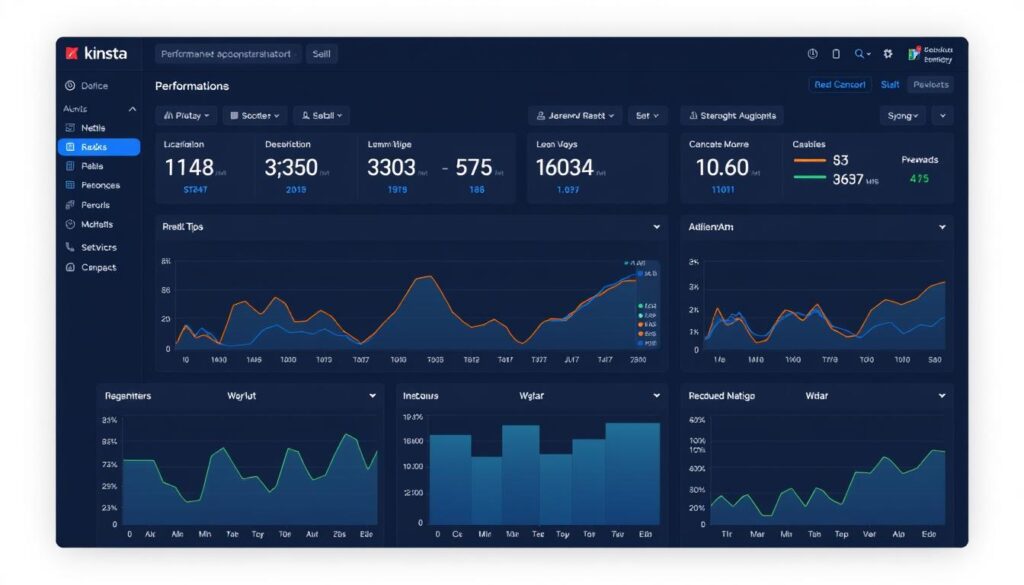
Kinsta’s Application Performance Monitoring (APM) tool is a powerful feature that allows you to monitor and analyze your site’s performance in real-time. With Kinsta APM, you can identify bottlenecks, slow database queries, and other performance issues that may be impacting your site.
Identifying and Resolving Performance Bottlenecks
Once you’ve identified performance bottlenecks using Kinsta APM, you can take steps to resolve them. This may involve optimizing database queries, improving server configuration, or leveraging caching mechanisms. By addressing these issues in your staging environment, you can ensure that your live site performs optimally.
Key benefits of using Kinsta APM include: real-time performance monitoring, detailed transaction traces, and actionable insights to improve your site’s performance.
Comparing Staging vs. Production Performance
Comparing performance metrics between your staging and production environments helps validate that optimizations will translate to real-world improvements. While staging environments closely mirror production, differences in caching, traffic patterns, and server load can affect comparative analysis. Establishing baseline metrics from your production environment provides realistic targets for optimization work in staging.
- Comparing performance metrics between staging and production environments helps validate that optimizations will translate to real-world improvements.
- Establishing baseline metrics from your production environment provides realistic targets for optimization work in staging.
- Performance improvements should be quantified with specific metrics like page load time, time to first byte, or database query execution time.
Pushing Changes from Staging to Production
Pushing changes from a staging environment to production is a critical step in your development workflow. This process involves deploying the changes you’ve tested and validated in your staging site to your live site, ensuring that your production environment is updated with the latest features and fixes.
Selective Push Options: Files, Database, or Both
When pushing changes from staging to production, you have the option to deploy files, database changes, or both. This flexibility is crucial because it allows you to control what gets updated on your live site. For instance, you might need to push new theme files or plugin updates without affecting the database, or you might need to synchronize database changes while keeping your file system intact.
Selective database table pushes can help preserve specific dynamic content while updating other database elements. This is particularly useful for ecommerce sites where order data, customer accounts, and inventory information need to be preserved during deployments.
| Push Option | Description | Use Case |
|---|---|---|
| Files Only | Updates to theme files, plugins, or other site assets | Deploying new features or bug fixes without database changes |
| Database Only | Updates to database tables, such as content or settings | Synchronizing content or configuration changes |
| Both Files and Database | Comprehensive update including both file system and database changes | Major site updates or version upgrades |
Best Practices for Safe Deployments
To ensure safe deployments, it’s essential to follow best practices that minimize risk. Always back up your live site before pushing changes from staging to production. Verify that your staging environment is a true reflection of the changes you intend to deploy.
Some developers create custom scripts to merge specific database tables or content types, preserving dynamic data while updating static content. This approach can be particularly useful for handling complex deployments.
Handling Dynamic Content During Pushes
Dynamic content, such as comments, orders, user registrations, and form submissions, requires special consideration during staging-to-production pushes. When pushing database changes, there’s a risk of overwriting dynamic content that has accumulated on your live site since the staging site was created.
To mitigate this risk, consider using selective database pushes or custom scripts to preserve dynamic data. For ecommerce sites, special care must be taken to preserve order data, customer accounts, and inventory information during deployments.

Managing Multiple Staging Environments
To maximize the benefits of Kinsta’s staging environments, understanding how to manage multiple environments is essential. As your development workflow scales, you’ll likely need to create multiple staging sites to test different features, plugins, and updates simultaneously.
Use Cases for Multiple Staging Sites
Multiple staging environments are particularly useful for large development teams or complex projects. You can use separate staging sites for different purposes, such as testing new plugins, theme updates, or major content changes. This approach allows you to isolate potential issues and prevent them from affecting your live site.
Organizing and Tracking Different Staging Environments
To effectively manage multiple staging environments, it’s crucial to have a clear organizational system in place. You should be able to easily identify the purpose of each staging site and track its status. Consider using a naming convention that indicates the specific use case or feature being tested on each site.
Resource Allocation and Performance Considerations
When managing multiple staging environments, resource allocation and performance become critical factors. Multiple staging environments share server resources, so it’s essential to monitor overall resource usage to prevent performance degradation. For resource-intensive sites, such as ecommerce stores, you’ll need to match your live site’s resources. Here are some key considerations:
- Premium Staging Environments: Consider using premium staging environments for critical testing, as they offer dedicated resources that match your production environment.
- Resource Monitoring: Regularly monitor resource usage across all staging environments to identify potential bottlenecks.
- Plugin Management: Deactivate resource-heavy plugins in staging environments that aren’t actively being used to free up system resources.
- Rotation System: Implement a rotation system where inactive staging environments are temporarily disabled when not in use.
- Scheduling: For performance-critical applications, schedule resource-intensive testing during off-peak hours to ensure optimal performance across all environments.
Troubleshooting Common Staging Issues
As you work with Kinsta’s staging environments, understanding how to troubleshoot common problems is crucial. While Kinsta’s staging environments are designed to mirror your live site closely, differences can still occur, leading to unexpected issues.
Database Synchronization Problems
One common issue developers face is database synchronization problems between staging and production environments. Ensuring data consistency is vital for accurate testing. To troubleshoot, check your database configurations and verify that the correct database is being used in both environments.
Tips for resolving database synchronization issues:
- Use Kinsta’s database management tools to compare and synchronize databases.
- Check for any manual changes made directly to the database that might cause discrepancies.
- Utilize version control for database schema changes to keep environments aligned.
| Issue | Cause | Resolution |
|---|---|---|
| Database not syncing | Mismatched database configurations | Verify and correct database settings |
| Data inconsistencies | Manual database changes | Use version control for schema changes |
Plugin and Theme Conflicts
Plugin and theme conflicts are another common issue in staging environments. To identify the problem, try isolating the conflicting plugin or theme by disabling them one by one and checking if the issue persists.
Steps to troubleshoot plugin and theme conflicts:
- Disable all plugins and switch to a default theme to establish a baseline.
- Re-enable plugins one by one, testing after each activation.
- Check for theme compatibility by switching between different themes.
Server Configuration Differences
Server configuration differences between staging and production environments can cause unexpected behavior. Common differences include PHP versions, memory limits, and server-level caching settings. Kinsta maintains similar configurations between environments, but some differences exist by design, such as disabled caching in staging.
To troubleshoot, check environment variables, PHP settings, and server configurations in both environments to identify discrepancies. For persistent issues, Kinsta’s support team can help identify and resolve server configuration differences that might be affecting your site.
| Configuration | Staging Environment | Production Environment |
|---|---|---|
| PHP Version | 8.0 | 8.0 |
| Caching | Disabled | Enabled |
| Memory Limit | 256M | 512M |
Conclusion: Maximizing Your Development Workflow with Kinsta Staging
By leveraging Kinsta’s staging environments, you can take your WordPress development to the next level, ensuring higher quality and performance. Kinsta’s staging environments provide a robust infrastructure that helps streamline your development workflow, supporting even headless WordPress applications.
Kinsta’s staging environments represent a powerful tool for streamlining your development workflow and improving the quality of your WordPress sites. By integrating local development with DevKinsta, staging environments, and production hosting, Kinsta provides a complete ecosystem for modern web development.
The ability to test changes in an isolated environment before deploying to production significantly reduces the risk of introducing bugs or performance issues to your live site. Advanced features like selective pushes, custom domains, and multiple staging environments give you the flexibility to adapt the workflow to your specific project needs.
As web development continues to evolve, Kinsta’s commitment to providing robust staging tools positions it as an ideal hosting partner for professional WordPress developers and agencies. With Kinsta, you can maximize your development workflow, ensuring a smoother and more reliable deployment process.