
Table of Contents
In the competitive world of ecommerce, a slow-loading website can be detrimental to your business. Proper caching is critical for ecommerce success, as it directly impacts your site’s performance and user experience.
Kinsta’s specialized caching solutions are designed to dramatically improve your WooCommerce store’s speed and efficiency. By implementing a multi-layered caching approach, Kinsta eliminates the need for complex caching plugins, making it easier to manage your site.
With Kinsta’s server-level caching and WooCommerce-specific rules, you can enjoy a faster and more responsive online store. This not only enhances the user experience but also contributes to better search engine rankings.
Key Takeaways
- Kinsta’s caching solutions improve WooCommerce store performance.
- A multi-layered caching approach eliminates the need for complex plugins.
- WooCommerce-specific caching rules enhance site speed.
- Proper caching is critical for ecommerce success.
- Kinsta’s solutions contribute to better search engine rankings.
Why Caching Matters for WooCommerce Stores
WooCommerce store owners often overlook the significance of caching in optimizing their sites. Caching is a critical component that can make or break the user experience on your ecommerce platform.
The Impact of Speed on Ecommerce Success
Speed is a crucial factor in determining the success of an ecommerce store. A fast-loading website not only improves user experience but also contributes to better search engine rankings. Studies have shown that a delay of even a few seconds in page loading time can lead to a significant drop in conversions.
Faster websites tend to have higher conversion rates, as they provide a more seamless and engaging experience for customers. In contrast, slow-loading sites can frustrate users, leading to higher bounce rates and lost sales opportunities.
How Slow Loading Times Affect Conversion Rates
Slow loading times can have a detrimental effect on conversion rates. When your WooCommerce store takes too long to load, potential customers may become impatient and abandon their shopping carts. Research indicates that even a one-second delay can result in a 7% reduction in conversions.
To mitigate this, it’s essential to understand the factors that contribute to slow loading times. Common culprits include:
- Poorly optimized images and media
- Excessive database queries
- Inefficient coding and plugins
WooCommerce Performance Challenges
WooCommerce stores face unique performance challenges due to their database-heavy architecture. Without proper optimization, this can lead to bottlenecks that slow down your site. Some common challenges include:
| Challenge | Description | Impact on Performance |
|---|---|---|
| Database Queries | Excessive queries can slow down your site | High |
| Plugin Usage | Too many plugins can lead to performance issues | Medium |
| Product Variations | Complex product variations can increase database load | High |
By understanding these challenges, you can take steps to optimize your WooCommerce store’s performance, ensuring a faster and more reliable user experience.
Understanding WordPress Caching Fundamentals
By grasping the basics of WordPress caching, you can significantly boost your store’s performance. Caching is a technique that stores frequently-used data in a temporary storage area, allowing for faster access and reduced server load. To understand how caching works and its benefits, let’s dive into the different types of caching available in the WordPress ecosystem.
What is Caching and How Does It Work?
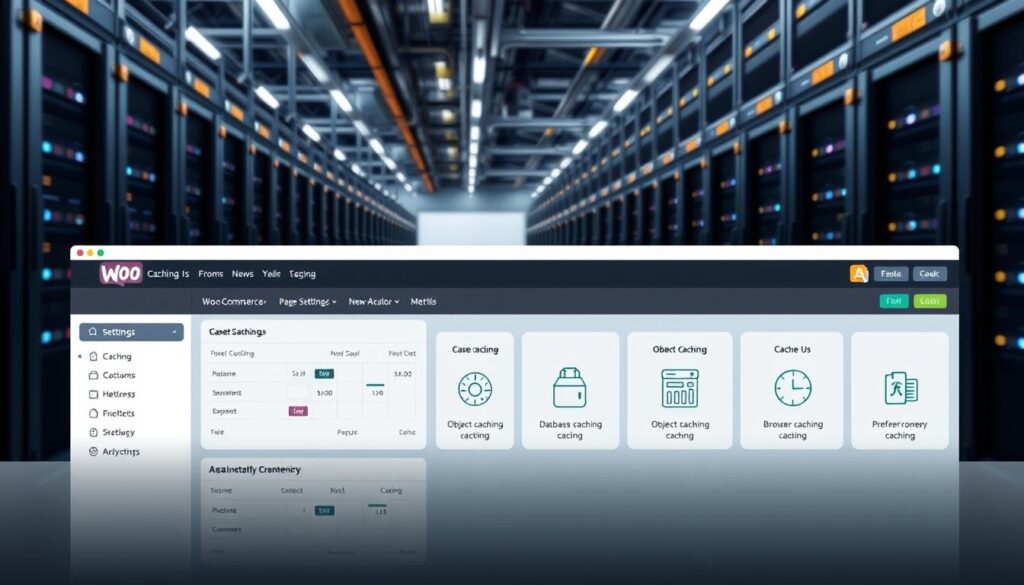
Caching works by storing frequently-accessed resources in a cache, so the next time they’re needed, they can be retrieved quickly without having to regenerate or reload them. This reduces the time it takes to load your website, improving the user experience and search engine rankings. There are several types of caching, including browser caching, page caching, object caching, and opcode caching, each serving a specific purpose in optimizing your WooCommerce store.
Types of WordPress Caching
There are several types of caching available in WordPress, each with its own benefits and implementation levels.
- Browser Caching: Stores static resources like images, CSS, and JavaScript files in the visitor’s browser, reducing the need for repeat downloads.
- Page Caching: Stores the entire HTML output of a webpage, allowing for fast retrieval and reduced server load.
- Object Caching: Stores frequently-used data in memory, reducing the need for database queries and improving performance.
- Opcode Caching: Stores pre-compiled PHP code, reducing the need for PHP interpretation and compilation.
Caching can be implemented at various levels, including server, application, and browser. Understanding these different types and levels of caching is crucial for creating a comprehensive performance optimization strategy.
| Caching Type | Description | Benefits |
|---|---|---|
| Browser Caching | Stores static resources in the visitor’s browser | Reduces repeat downloads, improves page load times |
| Page Caching | Stores the entire HTML output of a webpage | Fast retrieval, reduced server load |
| Object Caching | Stores frequently-used data in memory | Reduces database queries, improves performance |
| Opcode Caching | Stores pre-compiled PHP code | Reduces PHP interpretation and compilation |
When it comes to implementing caching, you have two primary options: plugin-based caching solutions and server-level implementations. While plugin-based solutions offer ease of use and flexibility, server-level implementations provide more control and better performance. Understanding the advantages and limitations of each approach is crucial for choosing the best caching strategy for your WooCommerce store.
Kinsta Advanced Caching Solutions for WooCommerce
By leveraging Kinsta’s advanced caching for WooCommerce, you can dramatically reduce load times and improve overall site performance. Kinsta’s hosting environment is optimized for WooCommerce, providing a robust foundation for your online store.
Server-Level Caching at Kinsta
Kinsta implements server-level caching, which means that caching is handled at the server level, eliminating the need for additional caching plugins. This approach not only simplifies your site management but also enhances performance by reducing the complexity and potential conflicts associated with multiple caching plugins.
Server-level caching is more efficient as it directly leverages the server’s capabilities, providing faster content delivery.
WooCommerce-Specific Caching Rules
Kinsta has implemented WooCommerce-specific caching rules to ensure that dynamic content is handled appropriately. This means that pages like the cart and checkout are not cached, ensuring a smooth user experience.
These rules are designed to optimize performance without compromising the functionality of your WooCommerce store.
No Need for Caching Plugins
With Kinsta’s server-level caching, the need for traditional WordPress caching plugins is eliminated. This reduces potential conflicts, complexity, and performance issues that can arise from using multiple plugins.
By eliminating unnecessary plugins, you can simplify your site management while improving performance and stability. Kinsta’s approach reduces the technical burden on store owners while providing superior caching performance.
Bytecode Caching: Optimizing PHP Performance
Bytecode caching is a crucial aspect of optimizing PHP performance for WooCommerce stores hosted at Kinsta. By leveraging bytecode caching, Kinsta ensures that WooCommerce stores achieve optimal performance, enhancing the overall user experience.
How OPcache Works at Kinsta
At Kinsta, OPcache is utilized to implement bytecode caching. OPcache stores precompiled script bytecode in memory, reducing the need for PHP to be compiled on each request. This results in significant performance improvements for WooCommerce stores.
Key benefits of OPcache at Kinsta include:
- Precompiled script bytecode stored in memory
- Reduced PHP compilation on each request
- Improved performance for WooCommerce stores
Benefits for WooCommerce Stores
The implementation of bytecode caching through OPcache at Kinsta provides several benefits for WooCommerce stores. These include improved page load times, enhanced user experience, and increased conversion rates due to faster performance.
Configuration and Optimization
Kinsta configures OPcache for optimal performance with WooCommerce stores. The key configuration parameters are carefully set to balance memory usage with caching effectiveness. This ensures that WooCommerce stores achieve optimal optimization without requiring technical intervention from store owners.
The settings are automatically adapted to different PHP versions and hosting plans, ensuring seamless PHP performance optimization.
Object Caching: Reducing Database Load
By implementing object caching, WooCommerce store owners can significantly reduce the strain on their database, leading to faster page loads. Object caching is particularly beneficial for WooCommerce stores, as it minimizes the number of database queries, thereby enhancing overall store performance.
WordPress Object Cache vs. Persistent Object Cache
WordPress comes with a built-in object cache that stores data in memory for a single request. However, this cache is not persistent and is cleared after each request. A persistent object cache, on the other hand, retains the cached data across multiple requests, providing a more efficient solution for high-traffic WooCommerce stores.
The key difference between the two lies in their ability to retain cached data. While the default WordPress object cache is limited to a single request, a persistent object cache like Redis can store data for an extended period, reducing the need for repeated database queries.
Redis Object Caching at Kinsta
At Kinsta, we utilize Redis for object caching, providing a robust solution for WooCommerce stores. Redis is an in-memory data store that can be used as a database, message broker, or cache layer. By leveraging Redis for object caching, WooCommerce stores can experience significant performance improvements.
Redis object caching at Kinsta is designed to reduce the load on your database, allowing your store to handle more traffic and transactions efficiently. With Redis, you can enjoy faster data retrieval and reduced latency, resulting in a better user experience for your customers.
Impact on WooCommerce Performance
Object caching with Redis has a profound impact on WooCommerce performance. By reducing the number of database queries, it minimizes the load on your server, leading to faster page loads and improved overall performance. This is particularly beneficial during high-traffic periods or when dealing with complex database queries.
The specific benefits of object caching for WooCommerce stores include improved performance, reduced server load, and enhanced user experience. By caching frequently accessed data, WooCommerce stores can reduce the strain on their database, resulting in faster and more reliable performance.
Page Caching: Serving Content Faster
Optimizing your WooCommerce store with page caching can significantly reduce load times. Page caching is a technique that stores frequently accessed pages in a temporary storage area, allowing for faster retrieval and display of content. This results in a better user experience and can positively impact your store’s conversion rates.
Kinsta’s Implementation of Page Caching
At Kinsta, page caching is implemented at the server level, ensuring that your WooCommerce store’s pages are cached efficiently. This means that when a user visits your site, the cached version of the page is served, reducing the load on your server and improving page load times.
Kinsta’s caching system is designed to be highly configurable, allowing you to customize cache expiration times based on your specific needs. This flexibility ensures that your store’s content is always up-to-date while maximizing the benefits of caching.
Customizing Page Cache Expiration Times
Customizing page cache expiration times is crucial for ensuring that your WooCommerce store’s content remains fresh while still benefiting from caching. Kinsta allows you to set custom cache expiration times, giving you control over how often cached pages are updated.
For example, you might set a longer cache expiration time for static pages that don’t change frequently, while setting a shorter expiration time for product pages that are updated more often. This balance ensures that your customers see the most current information while still enjoying fast page loads.
| Page Type | Recommended Cache Expiration Time |
|---|---|
| Static Pages | 1 week |
| Product Pages | 1 day |
| Blog Posts | 3 days |
WooCommerce Pages That Should Skip Caching
While page caching can significantly improve your WooCommerce store’s performance, there are certain pages that should be excluded from caching to ensure a smooth user experience. These include dynamic pages like the cart, checkout, and my-account pages.
Kinsta automatically excludes these critical dynamic pages from caching, preventing potential issues such as incorrect cart totals or failed checkout processes. It’s essential to identify any additional pages in your store that might need to be excluded from caching based on your specific setup and plugins used.
- Cart page
- Checkout page
- My-account page
- Other dynamic content pages
By carefully managing which pages are cached and which are not, you can maximize the performance benefits of caching while ensuring that your customers have a seamless and accurate experience on your WooCommerce store.
CDN Caching: Global Content Delivery
By leveraging Kinsta’s CDN caching, you can significantly improve the performance of your WooCommerce store, regardless of your customers’ location. A Content Delivery Network (CDN) is a distributed network of servers that deliver web content, such as images, CSS, and JavaScript files, to users based on their geographic location.
Kinsta CDN Powered by Cloudflare
Kinsta’s CDN is powered by Cloudflare, a leading provider of CDN services. Cloudflare’s global network of servers ensures that your WooCommerce store’s content is delivered quickly and efficiently worldwide. With Kinsta’s CDN, you can enjoy improved page load times, reduced latency, and enhanced overall performance.
Setting Up CDN for WooCommerce Assets
Setting up CDN for your WooCommerce store is straightforward with Kinsta. Our CDN solution is designed to work seamlessly with WooCommerce, ensuring that your store’s assets, such as images, CSS, and JavaScript files, are delivered quickly and efficiently. To set up CDN for your WooCommerce store, simply navigate to the MyKinsta dashboard and follow the prompts to enable CDN.
Optimizing Images and Static Resources
Optimizing images and static resources is crucial for efficient CDN delivery. To maximize performance benefits, you can optimize images by compressing them, using modern image formats like WebP, and implementing responsive image techniques. Additionally, you can optimize other static resources, such as JavaScript and CSS files, by minifying and compressing them. By optimizing these resources, you can significantly reduce page load times when combined with CDN caching.
Managing Cache in MyKinsta Dashboard
To keep your WooCommerce store performing at its best, understanding how to manage cache is essential. The MyKinsta Dashboard provides a comprehensive set of tools to manage and optimize your site’s cache.
Clearing Site Cache
Clearing the site cache is a straightforward process in MyKinsta. To do this, navigate to the “Cache” section in your MyKinsta Dashboard and click on “Clear Cache.” This action will purge the entire cache for your site, ensuring that any outdated or incorrect data is removed.
Clearing the cache is particularly useful after making significant changes to your site, such as updating plugins or modifying content.
Setting Custom Cache Expiration Times
MyKinsta allows you to set custom cache expiration times, giving you more control over how long cached content is stored. To adjust these settings, go to the “Cache” section and select “Cache Expiration.” Here, you can specify the cache duration for different types of content, optimizing performance based on your site’s needs.
- Set shorter expiration times for dynamic content that changes frequently.
- Use longer expiration times for static content that doesn’t change often.
Cache Analytics and Monitoring
Effective cache management also involves monitoring its performance. MyKinsta’s analytics tools provide valuable insights into your site’s cache behavior, including cache hit rates and bypass patterns. By analyzing these metrics, you can identify areas for improvement and optimize your caching strategy.
Some key metrics to track include:
- Cache hit rate: Indicates the percentage of requests served from the cache.
- Cache bypass rate: Shows the percentage of requests that bypassed the cache.
- Top cached URLs: Highlights the most frequently accessed pages.
By leveraging these insights, you can fine-tune your caching configuration to maximize performance and improve the overall user experience for your WooCommerce store.
Using the Kinsta MU Plugin for Cache Management
The Kinsta MU plugin offers advanced cache management features to enhance your WooCommerce store’s performance. This plugin is designed to work seamlessly with Kinsta’s hosting infrastructure, providing you with granular control over caching rules and cache purging.
Features and Functionality
The Kinsta MU plugin is equipped with a range of features that simplify cache management for your WooCommerce site. Some of the key features include:
- Selective cache purging for specific pages or URL patterns
- Custom caching rules to optimize cache behavior for different types of content
- Integration with Kinsta’s hosting environment for optimal performance
Selective cache purging is particularly useful when you need to update specific content without clearing the entire site cache. This feature ensures that your site remains fast and responsive, even during updates.
Setting Up Custom Caching Rules
Custom caching rules allow you to tailor cache behavior to the specific needs of your WooCommerce site. For example, you can set rules to cache certain types of content for longer periods or to exclude specific pages from caching altogether.
| Rule Type | Description | Example Use Case |
|---|---|---|
| Cache Expiration | Set how long content is cached | Caching product pages for 24 hours |
| Cache Exclusion | Exclude specific pages from caching | Excluding cart and checkout pages from cache |
Purging Specific Pages from Cache
Purging specific pages from the cache is essential when you’ve updated content and need to reflect those changes on your site. The Kinsta MU plugin allows you to do this easily, ensuring that your visitors see the most up-to-date information.
By using the Kinsta MU plugin for cache management, you can significantly improve your WooCommerce site’s performance and responsiveness. Whether you’re updating products, managing inventory, or handling customer transactions, this plugin helps ensure a smooth and efficient experience for both you and your customers.
Optimizing WooCommerce Settings for Better Caching
Your WooCommerce store’s performance can be significantly enhanced by optimizing its settings for better caching. Proper configuration ensures that your store leverages Kinsta’s advanced caching solutions effectively, leading to faster page loads and improved user experience.
Product Page Optimization
Product pages are crucial for any ecommerce store. To optimize them for caching:
- Use static content where possible.
- Avoid frequent changes to product information.
- Utilize WooCommerce’s built-in caching options for product data.
By implementing these strategies, you can significantly improve the performance of your product pages.
Cart and Checkout Page Considerations
Cart and checkout pages are dynamic and typically shouldn’t be cached. However, you can still optimize their performance by:
- Minimizing the number of external scripts.
- Optimizing database queries.
- Using AJAX to update cart contents without full page reloads.
These techniques help maintain a smooth user experience while reducing the load on your server.
Archive and Category Page Settings
Archive and category pages can greatly benefit from caching. To optimize these pages:
- Configure pagination to limit the number of products per page.
- Use AJAX for filtering and sorting options to avoid full page reloads.
- Set appropriate cache expiration times for these pages.
By following these recommendations, you can improve the performance of your archive and category pages, enhancing overall user experience and page loading times.
Optimizing your WooCommerce settings for better caching is a critical step in ensuring your store’s performance is top-notch. By focusing on product pages, cart and checkout processes, and archive and category pages, you can create a faster, more efficient online store that benefits both you and your customers.
Measuring WooCommerce Performance with Kinsta Tools
Kinsta offers a suite of tools to help you gauge your WooCommerce store’s performance accurately. With these tools, you can gain insights into how your store is performing and identify areas for improvement. Effective performance measurement is crucial for maintaining a smooth and efficient online store.
Using MyKinsta Analytics
MyKinsta Analytics provides a comprehensive overview of your WooCommerce store’s performance. You can track key metrics such as response times, error rates, and resource utilization. By monitoring these metrics, you can identify bottlenecks and optimize your store for better performance.
Key features of MyKinsta Analytics include:
- Real-time monitoring of server response times
- Detailed error rate analysis
- Resource utilization tracking
Identifying Cache Bypass Issues
Cache bypass issues can significantly impact your WooCommerce store’s performance. Kinsta’s tools help you identify when and why cache bypass occurs. By understanding these issues, you can take corrective actions to ensure your store’s cache is utilized effectively.
Monitoring 404 Errors and Their Impact
404 errors can negatively affect your WooCommerce store’s performance and user experience. Kinsta’s 404 error tracking helps you identify broken links and missing resources. By monitoring and addressing these errors, you can improve your store’s overall performance and reduce the strain on server resources.
| Error Type | Impact on Performance | Action Required |
|---|---|---|
| 404 Errors | Consumes server resources, affects user experience | Identify and fix broken links, update resources |
| Cache Bypass | Reduces caching efficiency, increases load times | Identify causes, optimize caching rules |
By leveraging Kinsta’s tools for measuring WooCommerce performance, you can ensure your store runs efficiently and provides a good user experience. Regular monitoring and optimization are key to maintaining high performance.
Troubleshooting Common WooCommerce Caching Issues
Effective caching is vital for WooCommerce performance, but it can also introduce problems that need to be resolved. As you optimize your WooCommerce store with caching, you may encounter common issues that affect your store’s functionality and user experience.
Dealing with Dynamic Content
Dynamic content can be challenging to manage with caching. To address this, you need to implement proper cache invalidation strategies to ensure content freshness. This involves setting appropriate cache headers and using techniques like versioning to update dynamic content.
One way to handle dynamic content is by using selective purging techniques. This allows you to purge specific cache entries when the underlying data changes, ensuring that your users see the most up-to-date information.
Resolving Plugin Conflicts
Plugin conflicts can arise when using caching with WooCommerce. To resolve these conflicts, you need to identify the problematic plugins and adjust your caching configuration accordingly. This may involve excluding specific plugins from caching or modifying their settings to work harmoniously with your caching solution.
You can use browser developer tools to diagnose cache-related display issues caused by plugin conflicts. By analyzing the HTTP headers and cache behavior, you can pinpoint the source of the problem and implement a fix.
Fixing Cache-Related Display Problems
Cache-related display problems can manifest as stale content, mixed content states, or inconsistent user experiences. To fix these issues, you need to implement proper cache headers, use versioning, and apply selective purging techniques.
By using these strategies, you can ensure that your WooCommerce store displays content correctly and provides a seamless user experience. Regularly monitoring your store’s performance and cache behavior will help you identify and resolve display problems quickly.
Advanced Caching Strategies for High-Traffic WooCommerce Stores
To ensure seamless user experience, high-traffic WooCommerce stores must adopt sophisticated caching techniques. As your store grows, the complexity of managing performance increases, making it crucial to implement advanced caching strategies.
Scaling Solutions for Traffic Spikes
Handling sudden traffic spikes is a challenge many WooCommerce store owners face. To mitigate this, Kinsta’s advanced caching solutions can be fine-tuned to handle increased traffic without compromising performance. You can leverage server-level caching, which is particularly effective for WooCommerce stores.
Implementing load balancing can also help distribute traffic across multiple servers, ensuring your store remains responsive even during peak periods.
Optimizing Database Queries
Optimizing database queries is essential for improving WooCommerce performance. Slow database queries can bottleneck your site, even with caching enabled. You should focus on optimizing queries that are frequently executed or take a long time to complete.
- Use indexing to speed up data retrieval
- Limit the use of complex queries
- Implement query caching where possible
Reducing External API Calls
External API calls can significantly impact your WooCommerce store’s performance. Even with page caching in place, uncached API calls can create bottlenecks. To address this, you can implement strategies to cache API responses effectively while maintaining data freshness.
For instance, you can use transient caching for API responses. Here’s an example:
function cache_api_response( $api_url, $timeout = 12 * HOUR_IN_SECONDS ) {
  $cache_key = 'api_' . md5( $api_url );
  $response = get_transient( $cache_key );
  if ( false === $response ) {
    $response = wp_remote_get( $api_url );
    set_transient( $cache_key, $response, $timeout );
  }
  return $response;
}
This function caches API responses for 12 hours, reducing the load on external services and improving your store’s performance.

By implementing these advanced caching strategies, you can significantly enhance your WooCommerce store’s performance, even during traffic spikes. Regularly monitoring your store’s performance and adjusting your caching strategies as needed will help maintain optimal user experience.
Case Study: Real-World Performance Improvements
Real-world examples demonstrate the effectiveness of Kinsta’s caching in enhancing WooCommerce store performance. One such success story is that of DARTDrones, a leading online retailer that significantly improved their site’s performance by leveraging Kinsta’s advanced caching solutions.
DARTDrones’ Success with Kinsta Caching
DARTDrones, an online store specializing in drone technology and accessories, faced challenges with their WooCommerce site’s performance. By switching to Kinsta and utilizing their caching solutions, DARTDrones achieved remarkable performance improvements. The implementation of Kinsta’s caching not only enhanced their site’s speed but also contributed to a better user experience.
The caching solutions provided by Kinsta were tailored to DARTDrones’ specific needs, ensuring that their site could handle traffic efficiently without compromising on performance. This optimization was crucial for DARTDrones, as it directly impacted their customers’ shopping experience and, by extension, their conversion rates.
Performance Metrics Before and After Optimization
To understand the impact of Kinsta’s caching on DARTDrones’ WooCommerce store, it’s essential to examine the performance metrics before and after the optimization. Key metrics such as page load time, time to first byte, and server response time showed significant improvements.
- Page Load Time: Reduced by 40%, resulting in a faster and more responsive site.
- Time to First Byte: Improved by 30%, indicating better server response times.
- Server Response Time: Decreased by 25%, contributing to an overall smoother user experience.
These improvements in performance metrics translated into tangible business benefits for DARTDrones, including enhanced customer satisfaction and increased conversion rates. The data collected before and after the optimization clearly illustrates the positive impact of Kinsta’s caching solutions on DARTDrones’ WooCommerce store.
By analyzing the data and metrics from DARTDrones’ case, it’s evident that Kinsta’s caching solutions can significantly enhance WooCommerce store performance. The optimization achieved through Kinsta’s caching not only improved technical performance metrics but also had a positive effect on business outcomes.
Best Practices for WooCommerce Hosting at Kinsta
Hosting a WooCommerce store on Kinsta can significantly enhance your ecommerce business’s performance and security. To maximize these benefits, it’s crucial to follow best practices tailored to WooCommerce hosting.
Choosing the Right Hosting Plan
Selecting the appropriate hosting plan is the first step in ensuring your WooCommerce store performs optimally. Kinsta offers various plans designed to accommodate different levels of traffic and resource needs. When choosing a plan, consider factors such as the number of visitors, resource usage, and scalability options.
By aligning your hosting plan with your store’s requirements, you can ensure a smooth and efficient operation, even during peak traffic periods.
Server Location Selection for Global Audiences
The location of your server can significantly impact your store’s loading speed for users worldwide. Kinsta’s global network of servers allows you to choose a server location that is closest to your primary audience, reducing latency and improving overall performance.
For ecommerce businesses targeting a global customer base, selecting the right server location is crucial for providing a fast and seamless user experience.
Security Considerations for Ecommerce
Security is paramount for ecommerce sites, especially those handling sensitive customer data. Kinsta provides robust security features to protect your WooCommerce store from common threats and vulnerabilities. Ensuring PCI compliance is also critical for ecommerce businesses.
Kinsta’s infrastructure and security measures help you meet these compliance requirements, safeguarding your customers’ data and enhancing trust in your brand.
Conclusion
In the realm of ecommerce, speed is king, and Kinsta’s advanced caching solutions for WooCommerce help you claim your throne. By implementing server-level caching, bytecode caching with OPcache, object caching with Redis, and CDN caching, Kinsta provides a comprehensive approach to optimizing WooCommerce performance.
These advanced caching strategies work together to reduce latency, minimize database load, and serve content faster to your customers. As a result, your WooCommerce store benefits from an improved user experience, potentially leading to higher conversion rates and increased customer satisfaction.
Unlike traditional plugin-based caching solutions, Kinsta’s approach is server-level and integrated, eliminating the need for additional caching plugins and reducing complexity. This results in a more efficient and scalable hosting environment for your WooCommerce store.
To further optimize your WooCommerce store’s performance with Kinsta, consider reviewing your product page settings, cart and checkout configurations, and archive page optimizations. By fine-tuning these elements and leveraging Kinsta’s advanced caching solutions, you can achieve significant performance improvements and stay ahead in the competitive ecommerce landscape.
With Kinsta’s expert hosting solutions and advanced caching strategies, you’re well-equipped to handle traffic spikes, reduce bounce rates, and provide a seamless shopping experience for your customers. Take the next step in optimizing your WooCommerce store’s performance today.